
Keep your computer organized by combining PC cleanup tools, organizing your files, and deleting unnecessary software. A computer gradually but steadily accumulates temporary data, files, downloads, and programs that you, as the owner, use less and less frequently. Because of this, it becomes harder to find the documents you need and keep track of available disk space over time.
The result is that it becomes difficult to maintain order in your work environment. To deal with these issues, you don’t necessarily need to buy expensive software. Built-in operating system features and free utilities can help you organize your files, clean up your disk, and identify resources that need attention
Thast is why we have compiled 5 useful tips for organizing your software to avoid clutter and boost productivity.
1. Start with Cleanup Tools
Free PC cleanup tools help you find temporary files, browser cache, and other data that often take up disk space. BleachBit is a free, open-source program for Windows and Linux. It cleans up supported categories of system and app data. However, its capabilities depend on the operating system and installed programs. It’s a good idea to review the selected categories before deleting anything. Mac users also have access to various solutions for cleaning and maintaining their systems.
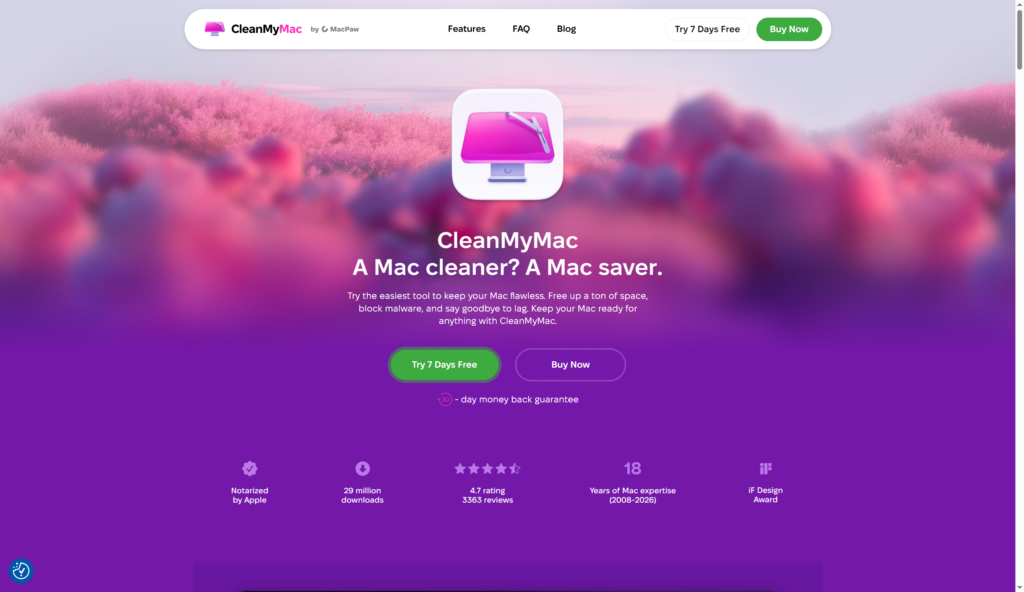
When choosing among MacKeeper alternatives, pay attention not only to the number of features but also to what each program offers. Are we talking about deleting unnecessary files, running security scans, uninstalling apps, or monitoring the system? Some utilities focus on a single task, while others combine several features and may have limitations in the paid version. Understanding these differences will help you choose the right tool without installing unnecessary software.
2. Find Out What’s Taking Up Your Disk Space
Sometimes your disk fills up not because of temporary files, but because of archives, large videos, old projects, or backups.
In such cases, disk space management tools are useful, as they show which files and folders take up the most space:
- WinDirStat for Windows creates a visual map of disk usage;
- GrandPerspective offers a similar way to analyze storage on macOS.
These programs make it easier to find large files that might be lost among numerous folders. However, they don’t automatically determine whether a specific file is important to the user. Don’t delete system components, program data, or backups just because they take up a lot of space. Check their purpose first. If necessary, move important personal data to an external drive or cloud storage.
3. Organize Files for Easier Access
Build a consistent folder structure. Free computer organization tools don’t necessarily mean specialized software.
Windows Explorer and Finder on macOS let you:
- create folders,
- rename files,
- search for documents,
- sort content by date, type, or name.

A consistent folder structure reduces the amount of time you spend searching for the materials you need. You can organize your work documents by project and your photos by year or event.
As the amount of data grows, file management tools with the following features add extra value:
- batch renaming,
- duplicate detection,
- file comparison.
However, always check for duplicates before deleting. Two files with the same name may contain different versions of the content.
Use built-in storage management features
For many users, the storage management tools built into the operating system are the simplest option:
- In Windows, Storage Sense can automatically delete selected temporary files and empty the Recycle Bin according to your settings.
- In macOS, the Storage section in System Preferences shows how disk space is allocated. It helps you determine what you can review or delete.
Microsoft explains how to set up automatic cleanup and check available options in its official guide.
Built-in features don’t always cover all user needs. However, they don’t require installing separate programs. Their limitations should also be considered. Storage Sense works with the system drive, and deleting files from the Downloads folder depends on your settings. Before automating cleanup, make sure that nothing important gets deleted.
4. Maintain Performance Without Unnecessary Software
Computer maintenance software can include disk cleanup, startup program management, and system health checks. However, not every computer needs an all-in-one package with dozens of features.
- If the main problem is a lack of disk space, a disk cleanup tool and a storage analyzer are sufficient.
- If you have trouble finding files, a well-organized folder structure and a convenient search function will be more helpful.
Free software also has limitations:
- Some products offer paid advanced features;
- Some utilities require technical knowledge.
You shouldn’t install multiple programs that perform the same tasks. Don’t trust unverified promises of instant computer speed-ups.
Often, you’ll get more practical benefit not from constantly using extra optimizers, but from:
- Updating your operating system regularly;
- Uninstalling unnecessary apps;
- Monitoring free disk space.
Closing Thoughts
Free tools help keep your computer in good shape. And you don’t have to spend money on expensive, comprehensive solutions. Cleaning programs remove unnecessary data. Analyzers show what’s taking up disk space. File managers simplify searching for and organizing documents. The best results come not from the number of utilities you install, but from choosing the right tools for your specific needs. It’s equally critical to be mindful of your own data.